
Best Desk Upgrades for a Clean, Productive Home Office Leave a comment
A clean home office rarely comes from buying more stuff. It comes from choosing the right upgrades, placing them well, and letting each item earn its spot on the desk.
That matters more than ever when work happens for hours at a time in one chair, in front of one screen, with one set of habits repeating every day. A better setup can make the room look sharper, yes, but the real payoff is deeper than aesthetics. Good desk upgrades can reduce strain, support steadier focus, and make long work blocks feel more sustainable.
Official guidance from OSHA and CDC/NIOSH points to a simple truth: the best home office upgrades are not random accessories. The strongest improvements usually come from monitor position, chair support, keyboard and mouse placement, lighting, and a work surface that allows natural posture. Sit-stand options can help too, especially when the goal is reducing sitting time and discomfort.
Home office desk upgrades that improve comfort and productivity
Many people start with decorative upgrades and leave the fundamentals for later. It feels more fun to buy a sculptural lamp or a polished desk mat than to think about screen height and elbow angle. Still, the upgrades with the biggest daily impact are usually the least flashy.
A productive setup supports the body first. When your display is too low, your neck pays for it. When your keyboard is too high, your shoulders notice. When your desk is cramped, your wrists and reach patterns shift into awkward positions without much warning.
That is why the most effective desk refresh often looks like a reset, not a makeover.
| Upgrade | Why it matters | Best setup target |
|---|---|---|
| External monitor | Reduces neck strain from looking down at a laptop | About an arm’s length away, with the top of the screen at or below eye level |
| Adjustable chair | Supports the spine and lower back during long sessions | Lumbar support, feet flat on floor or footrest |
| Separate keyboard and mouse | Helps keep shoulders relaxed and wrists straight | Directly in front of the body, elbows close to the sides |
| Larger work surface | Reduces twisting, reaching, and clutter pressure | Monitor centered, input devices close, frequently used items within easy reach |
| Task lighting | Improves visibility and helps reduce glare | Light placed to avoid reflections on the screen |
| Sit-stand workstation | Cuts down total sitting time | Alternate postures without forcing awkward arm or screen positions |
External monitor upgrades for better posture and focus
If you use a laptop as your main work device, an external monitor is often the most valuable desk upgrade you can make. CDC/NIOSH guidance describes an external monitor as more ideal for display, and that lines up with what many remote workers feel almost immediately after switching. Less neck flexion. Better visual comfort. More room to arrange the rest of the workstation correctly.
The key is not just buying a monitor, but positioning it well. Official guidance suggests placing the display about an arm’s length away, with the top of the monitor at or below eye level. OSHA also notes that the monitor should be directly in front of you and at least 20 inches away. That centered placement matters. A side-facing screen can quietly create hours of neck rotation every week.
A monitor arm or a simple stand can be the difference between a screen that works for you and one that looks good but sits too low. If your desk is near a window, glare needs attention too. CDC/NIOSH recommends placing the display perpendicular to windows or adjusting blinds to reduce screen glare.
A few monitor setup checks make a big difference:
- Screen height: top of the monitor at or slightly below eye level
- Screen distance: roughly an arm’s length away
- Screen position: directly in front of your chair, not off to the side
- Window relationship: perpendicular to daylight when possible
- Laptop users: pair the laptop with a stand if it serves as a second screen
Keyboard and mouse upgrades that support neutral wrist posture
Once the monitor is in the right place, the next priority is the zone where your hands work all day. OSHA guidance is clear here: the keyboard should be directly in front of the user, shoulders relaxed, elbows close to the body, and wrists straight in line with the forearms.
That means a stylish but overly thick desk pad, a too-high desk, or a keyboard tray set at the wrong height can all work against you. The goal is neutral wrist posture, not forced extension and not bent wrists resting on a sharp desk edge. A separate keyboard and mouse give you more freedom to place each tool correctly than a laptop keyboard ever will.
This is also where many people overbuy. You do not need a highly specialized input setup unless your work demands it. What you need is a keyboard that lets your hands stay relaxed and a mouse that sits close enough to avoid reaching outward all day. Compact layouts can help if desk space is tight, because they bring the mouse closer to the body.
Signs your keyboard and mouse placement may need work:
- shoulders creeping upward
- elbows flaring outward
- wrists bent up toward the keys
- mouse placed too far to the side
- forearms unsupported for long typing sessions
If you want a cleaner desk look, wireless devices can help, though cable-free is not automatically more ergonomic. Placement still wins. An uncluttered setup is useful only if it also supports natural movement.
Chair upgrades and foot support for long home office sessions
A home office chair is not just seating. It is part of the desk setup itself.
OSHA recommends a chair with a backrest that follows the natural curve of the spine and provides lumbar support. The seat should allow the feet to rest flat on the floor or on a footrest. A five-leg base with casters is also recommended for stability and ease of movement.
Those details matter because the chair sets the foundation for everything above it. If the chair is too low, the desk may feel too high. If the seat is too deep, you may lose back contact and slump forward. If your feet dangle, pressure shifts into the thighs and lower back. People often blame the desk when the real issue starts with the chair.
An excellent chair upgrade does not need to look bulky or corporate. It does need adjustability in the places that count. Seat height is essential. Back support is essential. Armrests can be useful if they do not force the shoulders upward or block the chair from moving close to the desk.
Here is a practical way to think about chair-related upgrades:
- Lumbar support: keeps the lower back supported during longer tasks
- Seat height: lets feet rest flat and knees stay in a comfortable position
- Footrest: useful when desk and chair heights do not match perfectly
- Stable base: a five-leg base supports easier movement and balance
Work surface upgrades for a cleaner and more functional desk
A clean desk is not only a visual preference. It changes how you move.
OSHA notes that a desk surface should accommodate a range of working postures and allow the monitor to sit directly in front of the user. When the work surface is too limited, awkward reaching and side-looking monitor placement become more likely. In plain terms, a cramped desk can push your whole setup out of alignment.
This is where functional upgrades have a strong return. A desk with adequate depth helps you place the monitor at a healthy distance. A little extra width allows your keyboard, mouse, notebook, and daily tools to stay within easy reach. Under-desk cable trays, monitor arms, drawer units, and laptop stands can all open up the surface without adding visual noise.
A few upgrades stand out because they improve both appearance and workflow:
- cable tray or cable box
- monitor arm
- laptop stand
- small drawer organizer
- vertical dock or charging station
The best clean-desk setups usually follow one quiet rule: the center zone stays open for work, and everything else has a defined home. That gives your hands room to move, keeps your monitor centered, and lowers the friction that clutter creates when you are trying to focus.
Lighting upgrades that reduce screen glare and eye strain
Lighting has a surprising effect on desk comfort. A beautiful office can still feel exhausting if the screen catches harsh reflections or if the room swings between dim corners and bright glare.
CDC/NIOSH recommends positioning the display perpendicular to windows or adjusting blinds to reduce glare. That guidance is simple and highly effective. Before buying a new lamp, it is worth checking whether the desk itself should rotate or whether daylight needs softening.
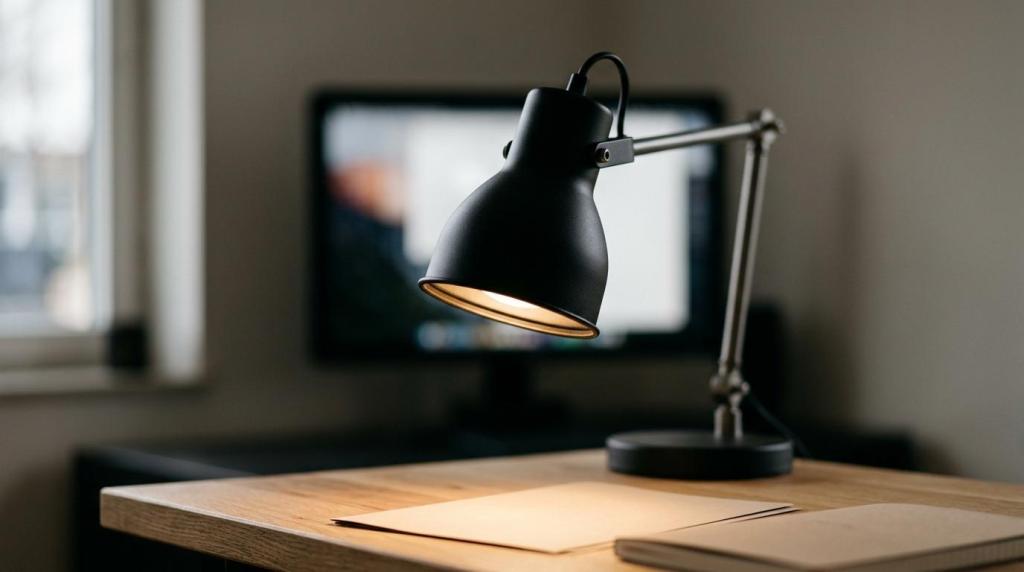
Good task lighting supports reading, writing, and video calls without blasting light into the monitor. Warm ambient light can make the room feel calm, while a more focused task lamp can handle detailed work. The point is balance. You want enough light to reduce squinting, but not so much contrast that the screen becomes a mirror.
If your home office doubles as a bedroom or living space, lighting upgrades often deliver the cleanest visual payoff too. A slim lamp, hidden cord routing, and better screen placement can make the desk look more intentional almost instantly.
Sit-stand desk upgrades and what research says about productivity
A sit-stand workstation is one of the most talked-about desk upgrades, and for good reason. It offers flexibility that a fixed desk cannot. You can change posture, reduce long uninterrupted sitting, and keep energy from going flat in the middle of the day.
The evidence is promising, with some nuance. Research reviews have found that sit-stand workstations often reduce perceived discomfort, and several studies show lower sitting time. Productivity results are mixed. Some studies report gains, some show no clear change, and a few land somewhere in between. That means a standing desk is best viewed as a comfort and movement tool, not a guaranteed output machine.
That said, comfort and output are not separate in real life. When people feel less stiff and less trapped in one position, work can feel easier to sustain. The upgrade works best when the standing position is set up as carefully as the seated one. The monitor still needs to be centered. The keyboard still needs to allow relaxed shoulders and straight wrists. Standing badly is not better than sitting well.
A desk converter can be a smart starting point if a full desk replacement is not realistic. For many people, the real win is not standing all day. It is having the option to shift.
Break and movement upgrades that make the desk setup work better
Even a well-designed workstation cannot replace movement. CDC/NIOSH notes that short breaks every hour help reduce discomfort for people who work on computers, and one NIOSH source reports that hourly 5-minute breaks, added to conventional rest breaks, can significantly reduce musculoskeletal discomfort and eyestrain.
This is one of the most overlooked home office upgrades because it does not arrive in a box. Still, it may be one of the strongest.
A few easy supports can make movement more likely:
- Timer cue: prompts an hourly 5-minute break
- Water bottle on desk: creates natural reasons to stand and refill
- Printer or storage off-desk: adds small walking intervals during the day
- Open floor space: makes quick stretching realistic, not inconvenient
The strongest desk setup is the one that invites healthy use. That means a monitor at the right height, a chair that supports the spine, input devices placed for neutral wrists, light that does not fight the screen, and enough flexibility to change posture before discomfort builds. A clean desk looks good in photos. A well-planned desk feels good at 3 p.m., which is when the best upgrades really prove their value.
